.png)
Company-Managed Projects
Add field
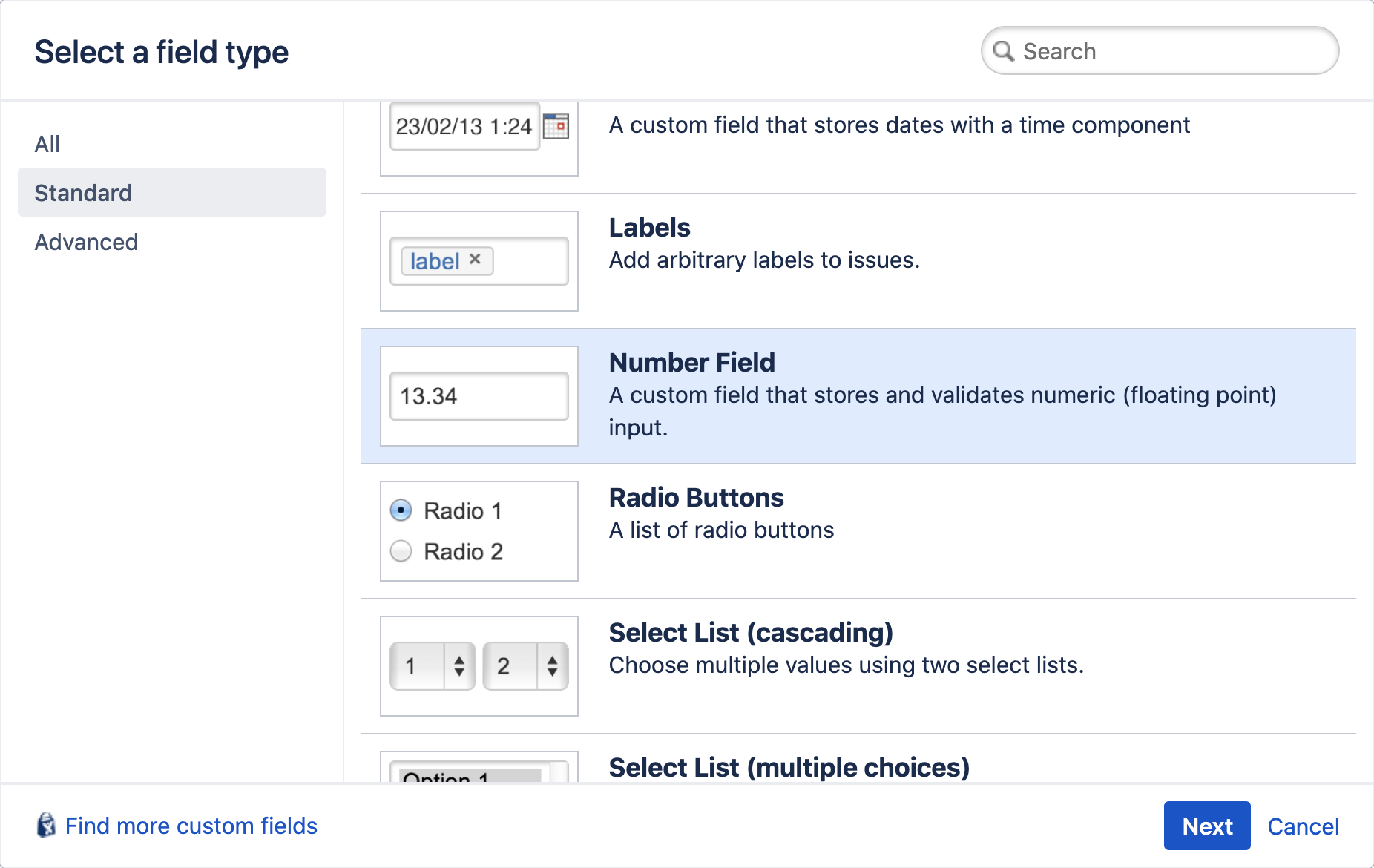
To set a budget for any progress bar you need to create the custom field you want to use first.
For time budgets the Short text (plain text only) needs to be used. This way you can differentiate between time formats (e.g. 8h 30m or 3d 2h 15m).
For numerical budgets you can use the Number Field.
Once the field is created, add it to the necessary screens.
Assign as Budget
In the Summary Panel configuration navigate to the related progress bar and set the field as budget in the drop down menu. Depending on your configuration set up you can do this globally, per issue type or on a project basis.

Add value
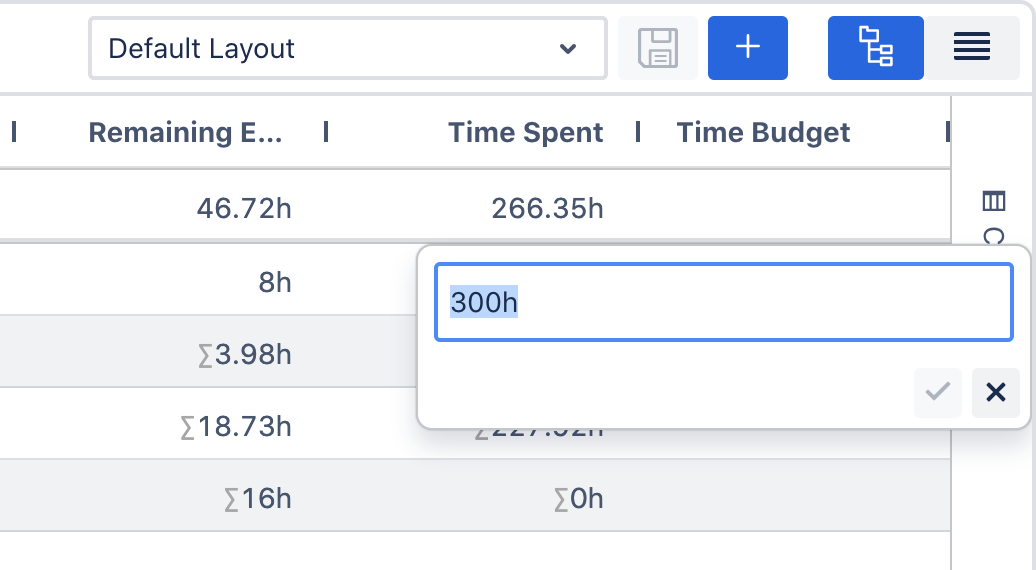
In order for the budget to appear on the progress bar, you need to add a value to the field. You can do this in the Issue View or Detail View Editor.
Team-Managed Projects
Add field
To set a budget for any progress bar you need to create the field you want to use first. For that navigate to Project Settings > Issue Types in your Team-Managed project. Here you can add the budget field.
For Time Budgets the Short Text field needs to be used. This way you can differentiate between time formats (e.g. 8h 30m or 3d 2h 15m).
For Numerical Budgets like Story Points you can use the Number field.
Please note that you need to do this for every issue type that should have a budget.

Assign as Budget
In the Summary Panel project configuration navigate to the related progress bar and set the field as budget in the drop down menu.
Please note that you need to switch on the customisable project configuration first.
Add value
In order for the budget to appear on the progress bar, you need to add a value to the field first. You can do this in the Issue View or Detail View Editor.