
Containers
What are containers?
Containers are a flexible structural element. Similar to Jira epics, they can be parents of other issues.
What can they be used for?
Epic Sum Up containers allow you to create flexible structures. Containers are not bound to a specific issue type hierarchy, and they can be stacked to any height.
Best Practices
Note that we have built the container feature only to extend - not replace - the building of Jira hierarchies.
Extending Jira hierarchies can look like:
Grouping different Plans (formerly Advanced Roadmaps) hierarchies into one
linking standard issue types directly to the top level container
Link issues that don’t have a parent link to a container
All of this flexible hierarchy building will be visible in the container panel (an improved version of the Jira hierarchy list) and Detail View Editor.
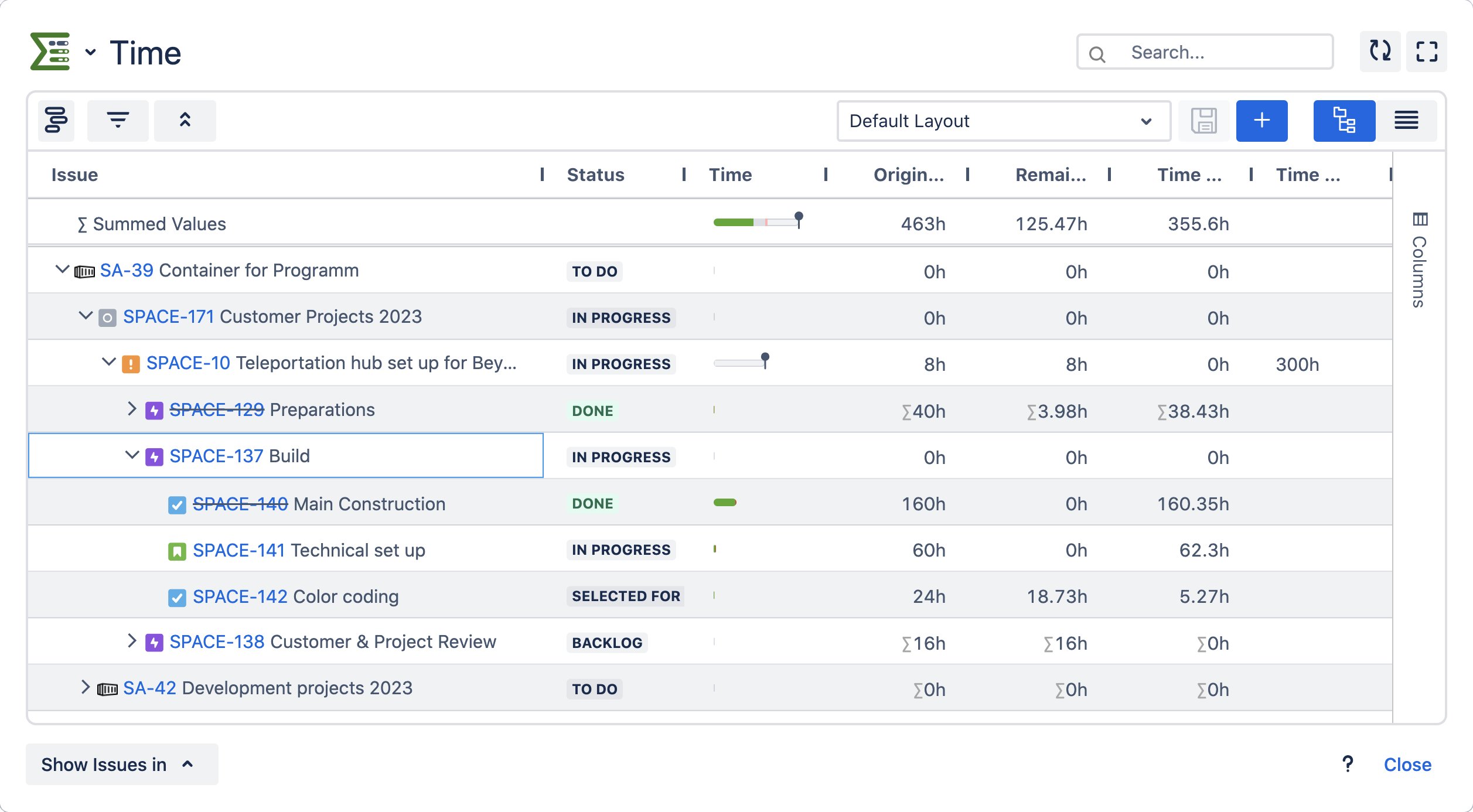
How to use containers?

Please note that containers need to be configured by administrators first. Everything they need to know about the configuration can be found here.
1.The basics
When it comes to using containers, there are two important elements: the container work item types and the container link method.
Container work item types:
In the configuration an administrator decides which work item types will be used as containers. Work item types that are already part of the Jira hierarchy like epics and Plans work item types (formerly Advanced Roadmaps) above can’t be used.
Container link types:
There are two types of container links in the Cloud. An instance can only use one at a time.
Container link field | Work item links |
The container link field is a custom field that works like the Jira Parent field. It’s the same as the container link field on Data Center. | You can create a custom work item link or use existing ones as well. Multiple link types can be used. |
The link type that’s used in your instance is defined by the administrator.
2.The linking in the work item view
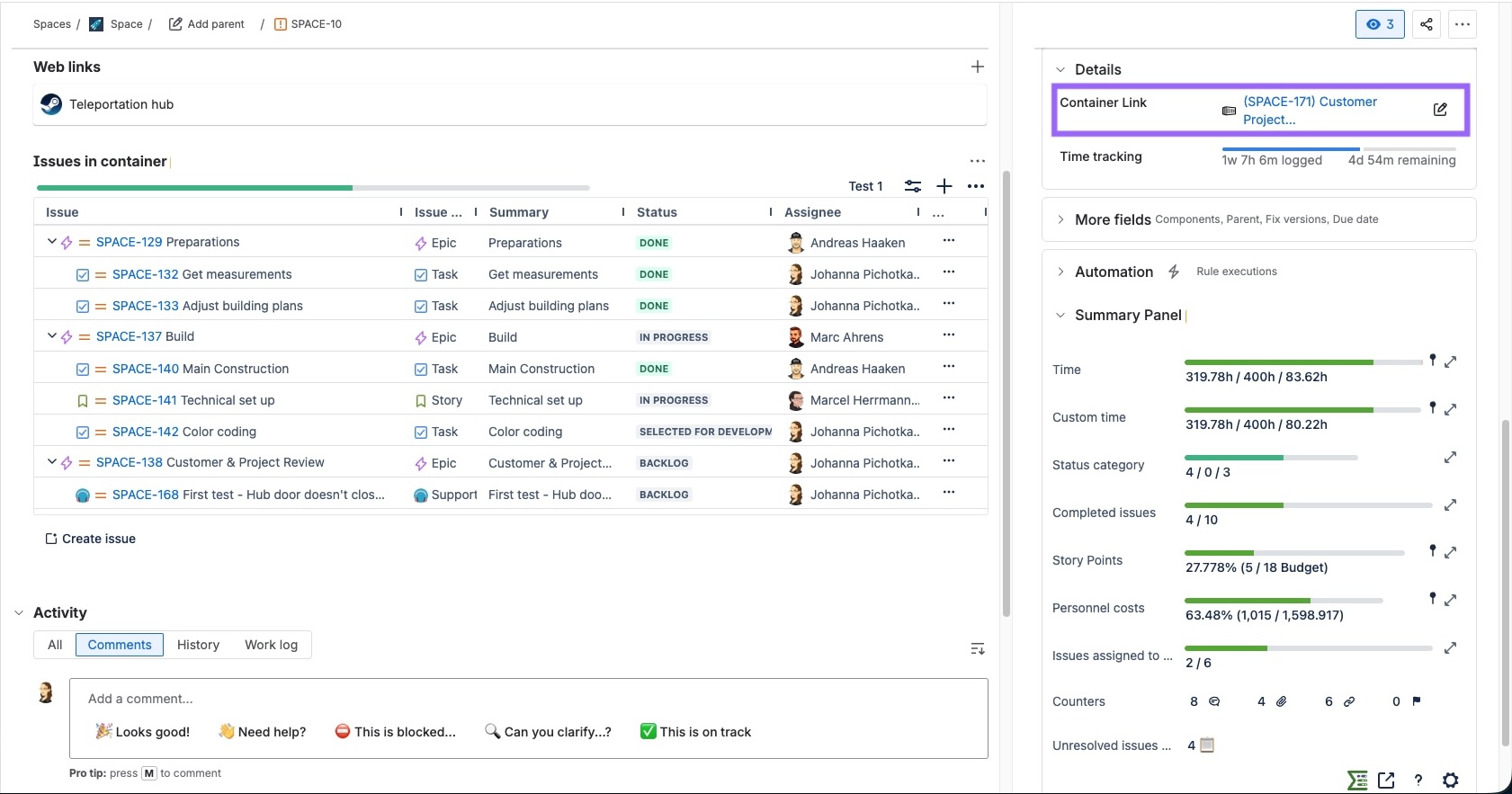
Container link field:
The container link field like the Jira Parent field will be shown in the work item view where you can easily edit it. In which projects and work item types it is displayed depends on the screens your administrator has added it to. Learn more about Jira screens.
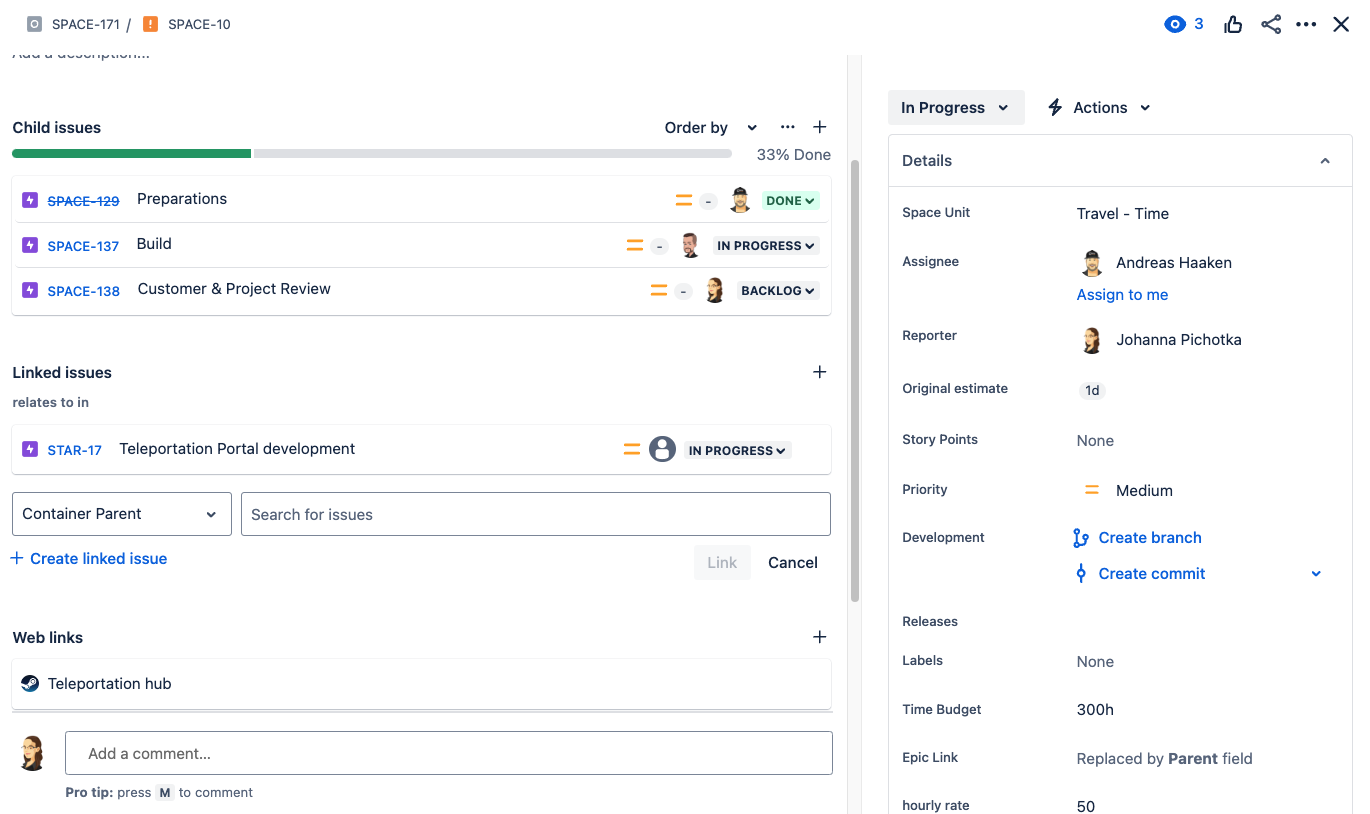
Work item links:
When you’re using work item links as container links, simply set them as you’re used to. Keep in mind that the linking will only work when using the link and work item types set in the configuration.
3.The structure you built
There are two places where you can view your built structures:
Container panel:
The container panel is similar to the Jira hierarchy list, only with a few additional features. You can add it to container work item types through the app menu.
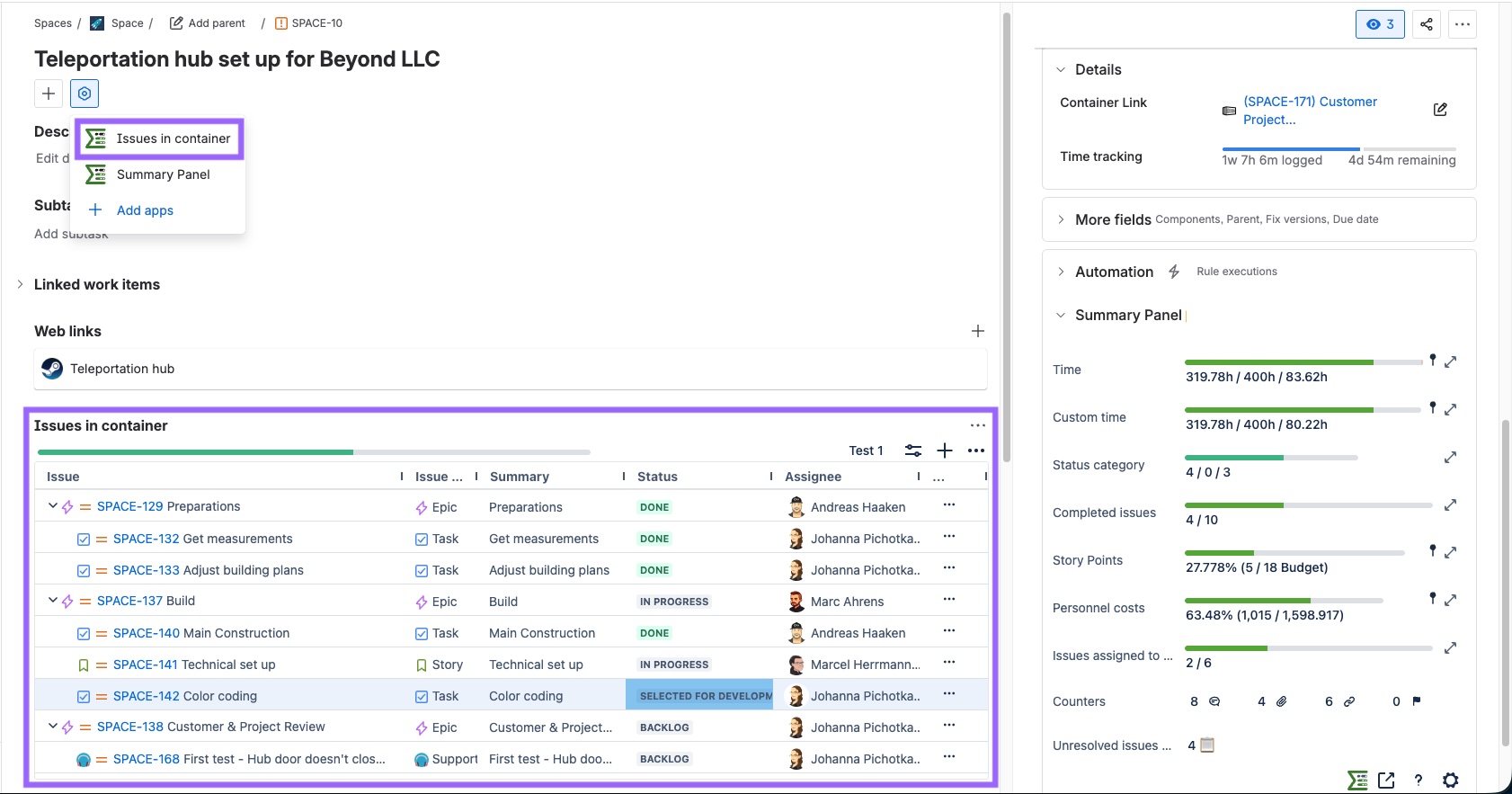
Detail View Editor:
In the Detail View Editor you can also see your whole hierarchy as well as edit it.
Migrating containers
On Data Center containers use the container link field as well. This makes for a smooth and seamless migration when you want to use the same method on Cloud.
However, migrating Data Center containers to Cloud work item links is not possible automatically but instead has to be done manually.
When migrating we recommend using the container link field in Cloud as it guarantees a smooth migration that can be done with the Jira Cloud Migration Assistant.
Known limitations
There are some known limitations when it comes to using containers.
Jira only takes its own hierarchies into account. Which is why containers should not be used below epics, since work items below the container will not be visible e.g. in list views on agile boards. This is because Jira does not recognize the Epic Sum Up container links.
If you use containers together with Plans (formerly Advanced Roadmaps), this will not be reflected in Plans. As Jira only recognizes its own hierarchies.
When using work item links:
If a work item has both a work item link (for building a container structure) and a Jira parent link, Epic Sum Up will prioritise the parent links.
With work item links, circle connections can be built. While we made sure this cannot cause issues or that issues appear twice in the Detail View Editor, you may get different structures depending on the work item you are opening the Detail View Editor from.