.png)
Custom progress bar descriptions
Previously, the progress bar name was predefined in the app or by the custom field name. Now, every progress bar has a description field in its configuration where you can adjust the name.

Progress bar sizes
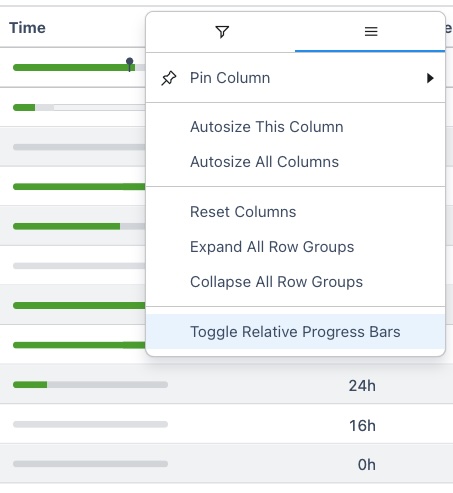
In the Detail View Editor, progress bar sizes can vary significantly. This is because the size is calculated in relation to the values of all the issues. For example, progress bars with high values (e.g., time spent) will appear much larger than others. When there is a large difference between values, progress bars can become difficult to read.
To ensure that all progress bars are clearly visible, you have the option to toggle off the size relation between progress bars. Now, all progress bars will be the same size and easy to read.
This option can be found in the column menu.
Ignore original estimate
A new option is available for our custom time progress bar. You can now set the original estimate to the sum of the remaining estimate and the time spent.
Read more here.
