
Version 5.10
Use containers in Cloud just like on DC
Containers in Cloud are now easier to set up and manage thanks to the new container link custom field which is similar to the Parent field in Jira. Previously, containers in Cloud relied on work item links, but now you can choose between using the work item link method or the new dedicated field.
For teams already using containers on Data Center, this means you can now work with containers in Cloud in the same way you’re used to without needing to change your workflows.

Understand your project structure at a glance
When using containers, you can now add a container panel to the work item view. It shows the full hierarchy underneath each container. You can expand or collapse levels, add more fields, and save custom layouts to focus on what matters most.
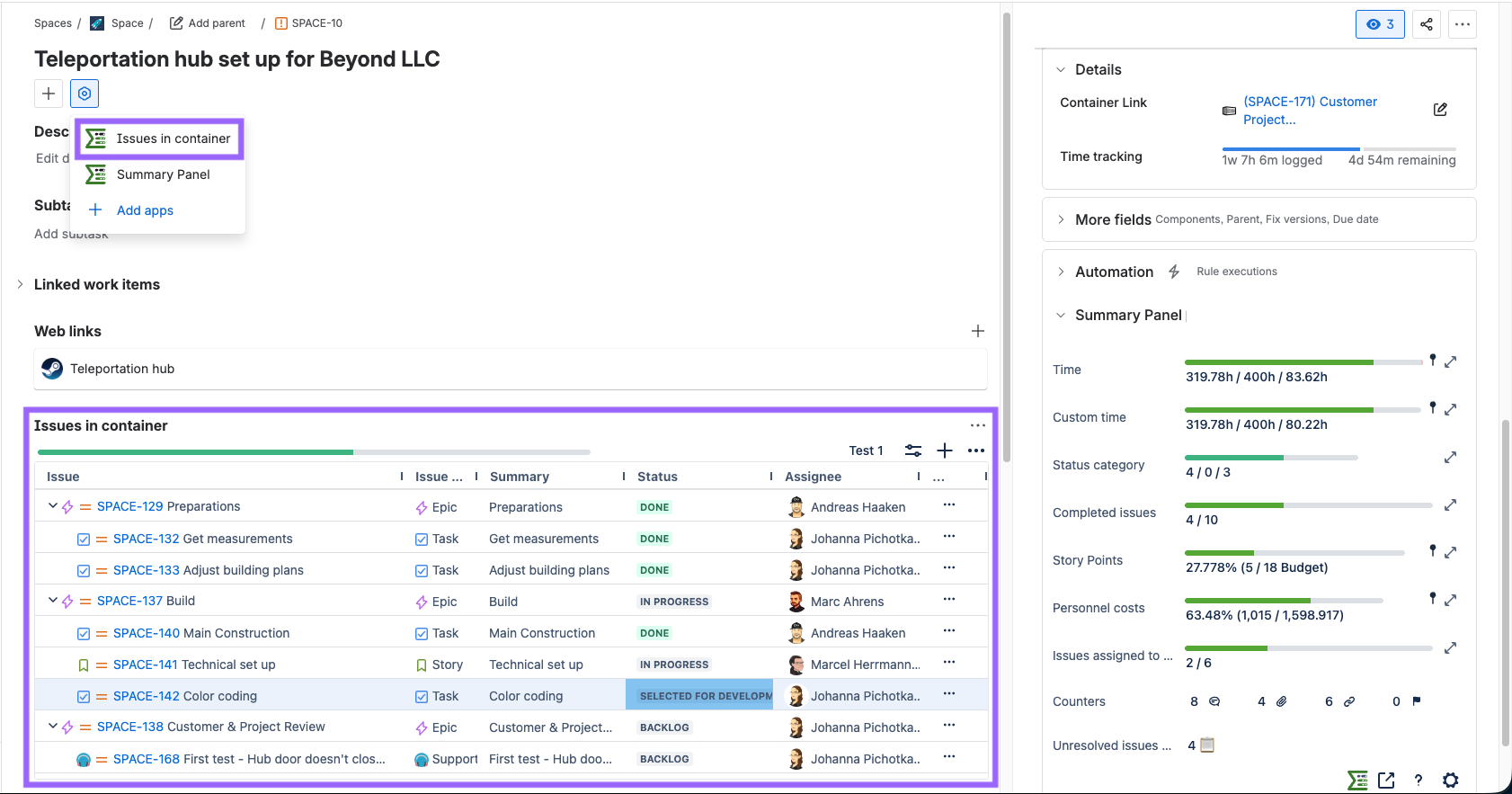
Configure containers globally
The global container configuration now gives admins full visibility and control. Choose whether to use work item links or the container link field, you can only use one at a time. See how often container links are used including a link to a JQL that tells you exactly which work items are used as containers.
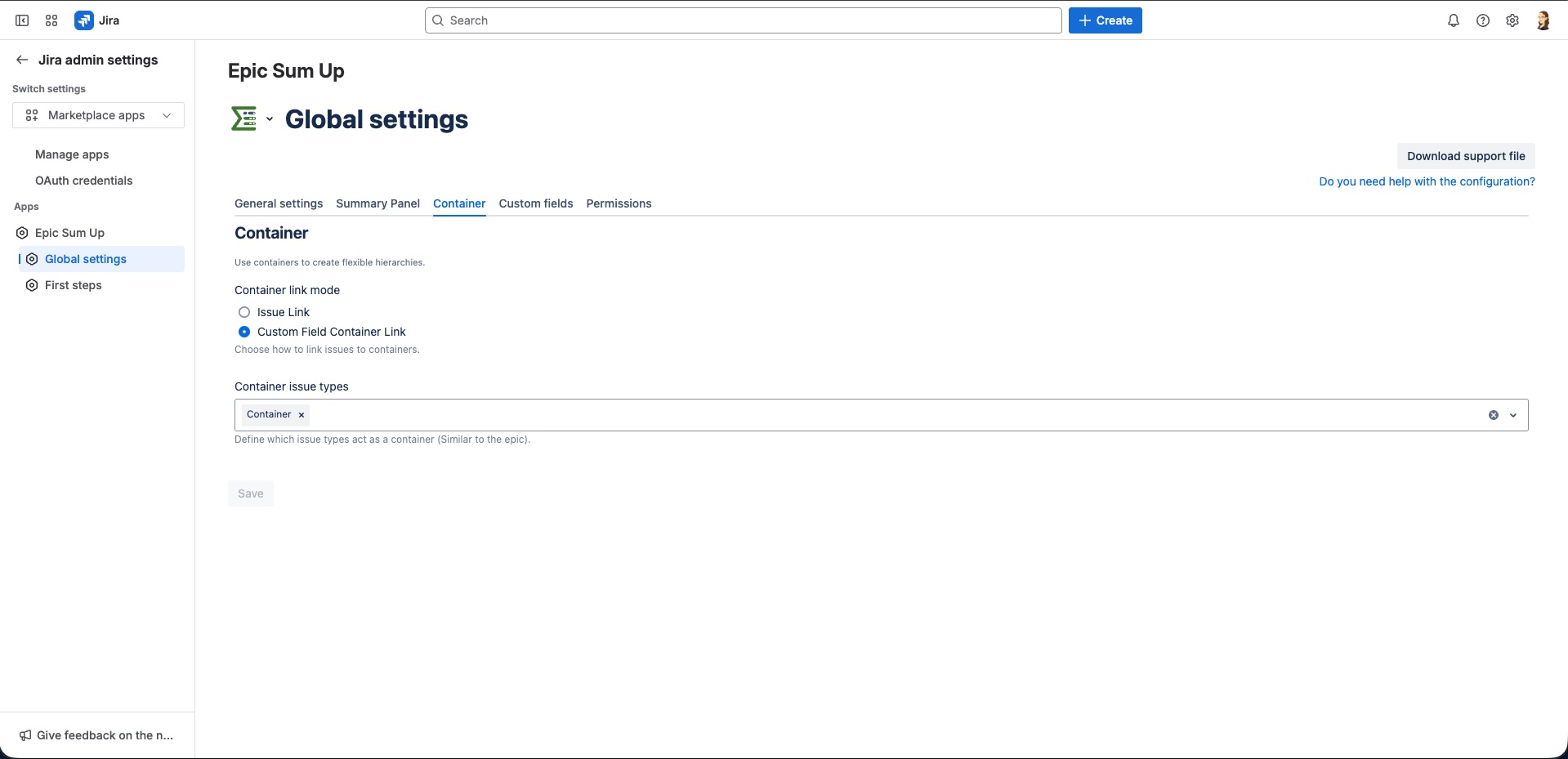
Smoothly migrate containers from DC to Cloud
If you’ve been using containers on Data Center, your existing container links now migrate seamlessly to Cloud. No manual updates or remapping are needed, reducing migration effort and risk.
Personalise your timesheet views
You can now save timesheet column layouts, so you don’t need to rebuild your view every time. Save personal layouts or, if you’re an admin, publish global ones for your team.
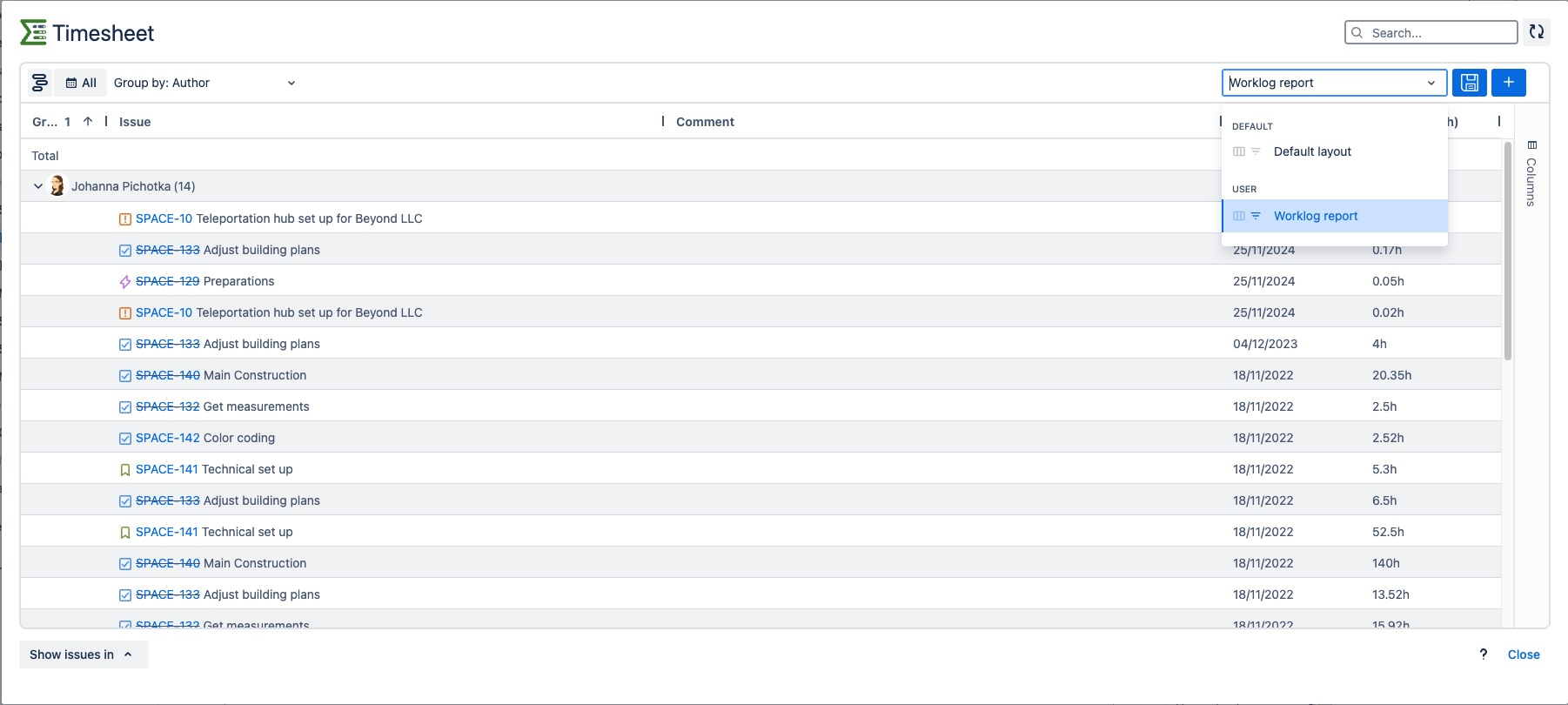
Keep your preferred view
In both the Detail View Editor and timesheet, your saved layouts can now include filters, sorting preferences, and column sizes. Simply switch on the toggles you need before saving—your setup will stay just the way you left it.
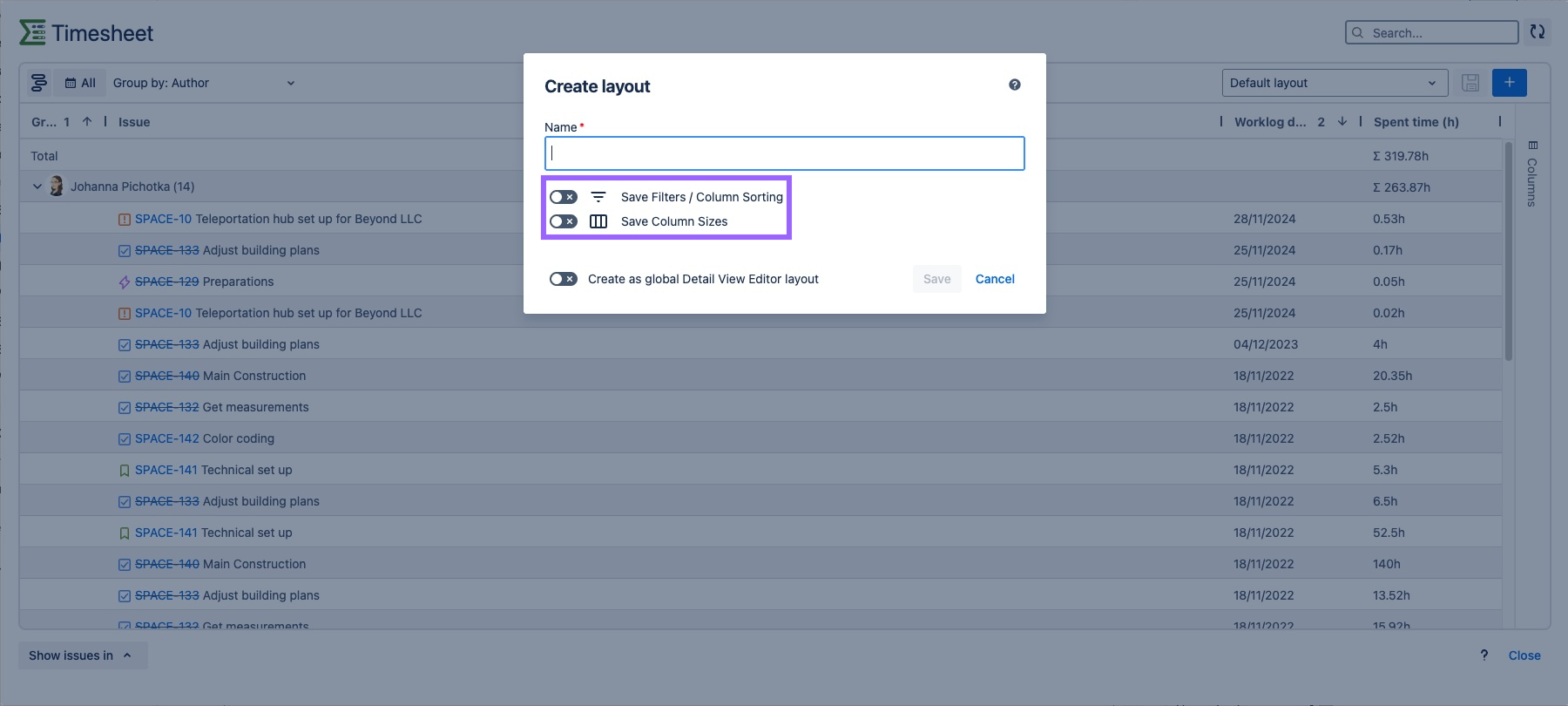
Reuse configurations across projects
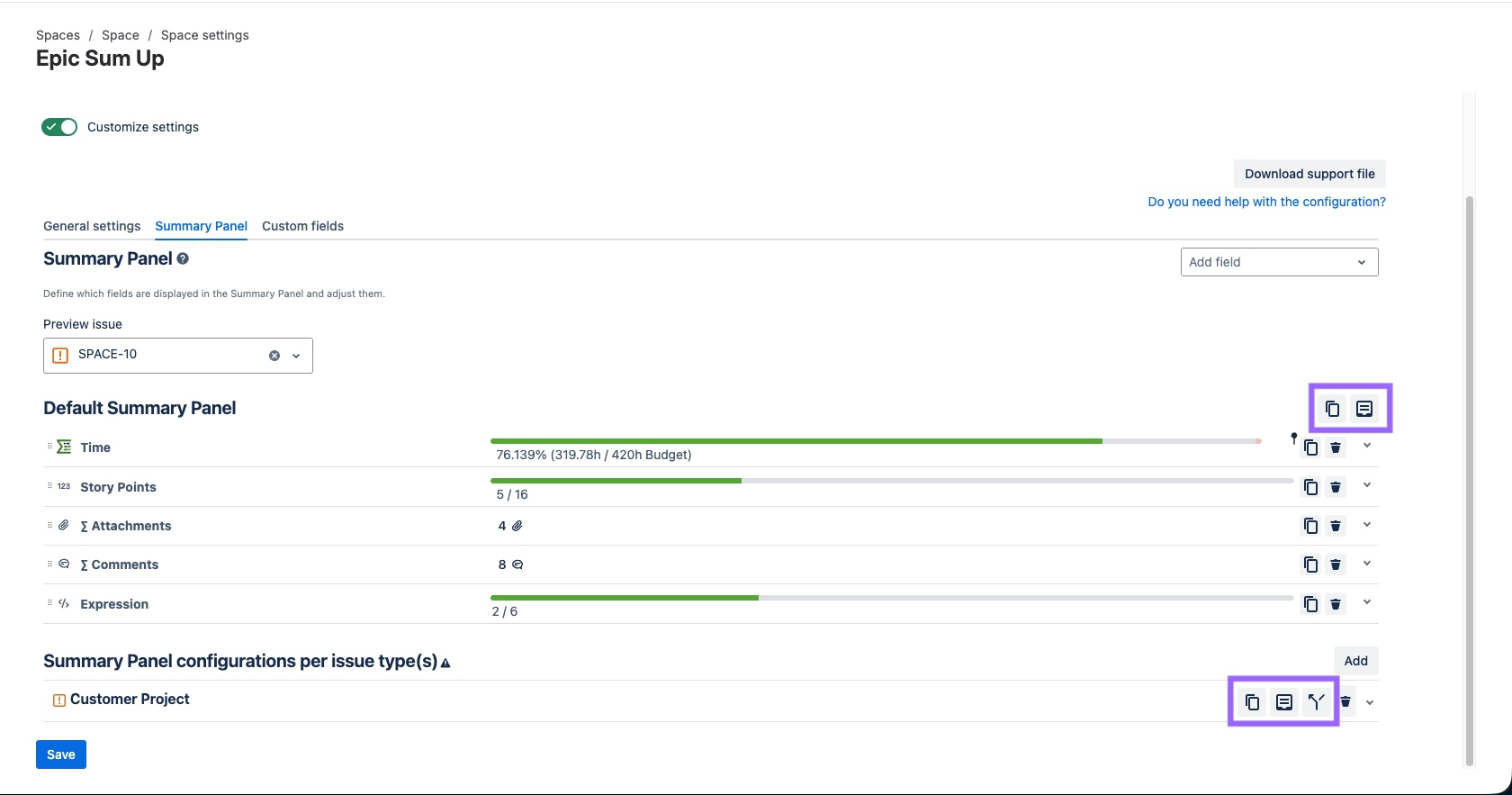
To help teams standardise faster, you can now copy and paste Summary Panel and progress bar configurations between projects—or between global and issue-level configurations.
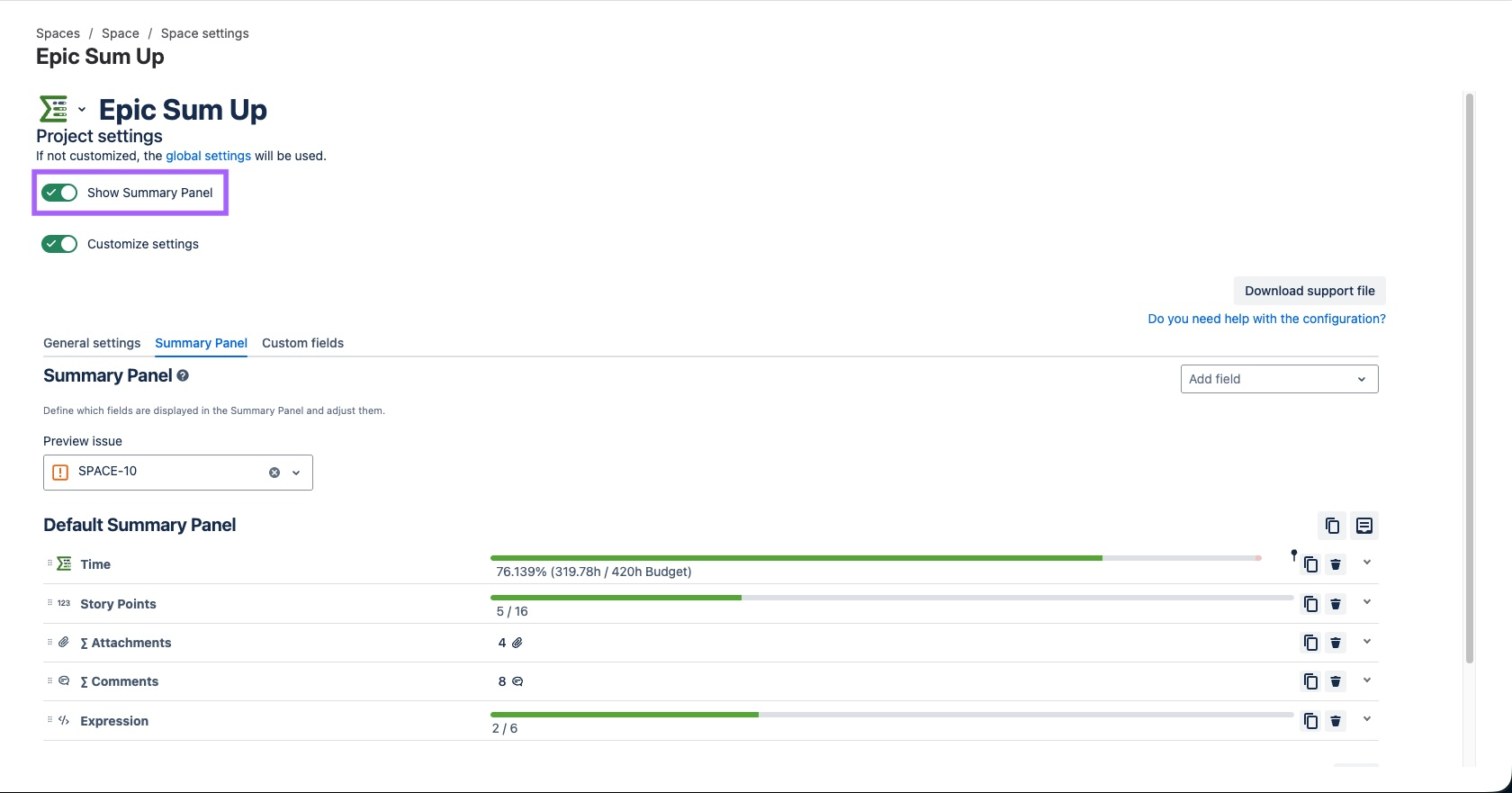
Show or hide the Summary Panel per space
Each space now includes a toggle in space settings that lets you activate or deactivate the Summary Panel. It’s active by default, but you can turn it off anytime.
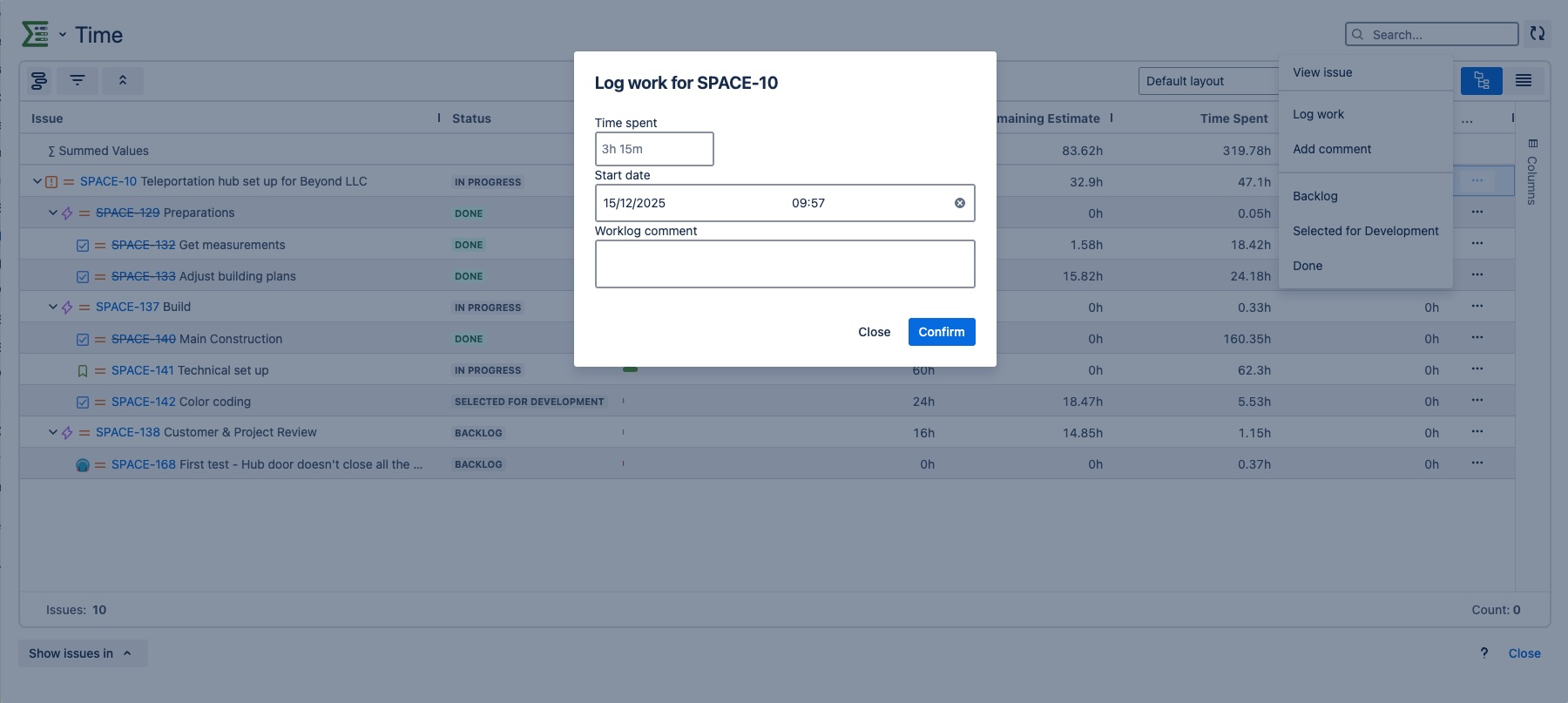
Log work with precision
When adding work logs from the Detail View Editor, you can now specify both date and time. This allows for more accurate reporting and time tracking.
Clear feedback when permissions block copy & paste
If the ESU bulk editing permission is limited to specific groups (e.g., admins), users outside those groups now see a clear error message when attempting to copy & paste in the Detail View Editor. This removes confusion and helps users understand how to get access if needed.
Consistent progress bar categories everywhere
Progress bar and counter categories are now aligned across the dashboard gadget and the Summary Panel configurations.