.png)
To make sure the Detail View Editor is printed out correctly, follow this quick step-by-step guide.
-
Open up the Detail View Editor.
-
Filter and adjust as needed.
-
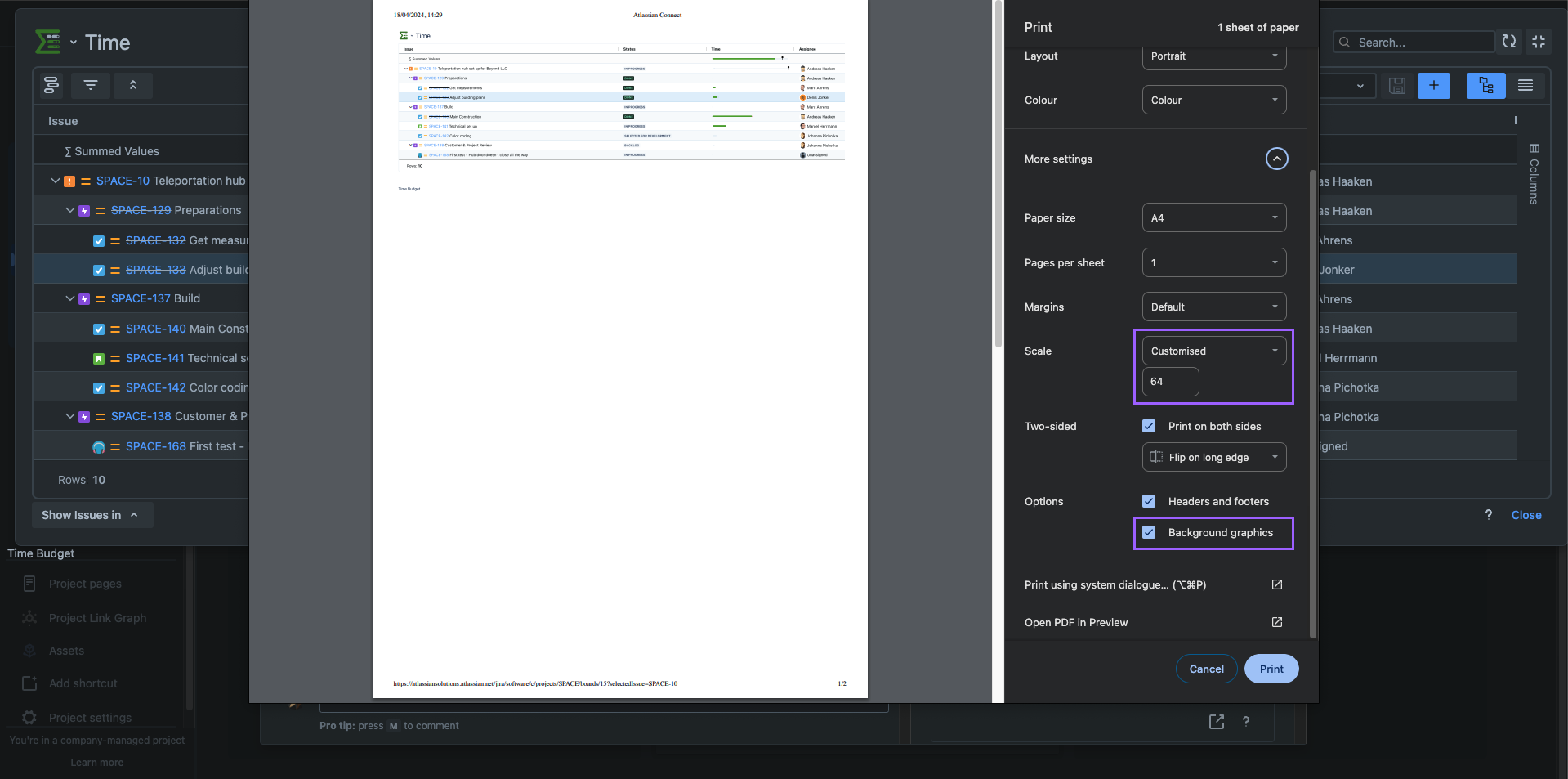
Navigate to the bottom left corner, click ‘Show issues in’ and select the ‘Print’ option.
-
Before printing, navigate to more settings and make sure that the checkmark ‘Background graphics’ is applied. Without it, colors will not print properly.
-
Adjust the scale to make sure everything you need is visible.
-
Print.