.png)
Epic Sum Up can be migrated using the Jira Cloud Migration Assistant (JCMA).
To access this functionality, please make sure that you have the latest Epic Sum Up versions installed. At least Data Center version 4.5.2 and Cloud version 4.3.
What to do
Using the migration assistant, the migration path is straight forward:
-
Install the app on Cloud
-
Mark the app as “Needed in Cloud“ in the Jira Cloud Migration Assistant
-
Run the migration (potentially in a test-environment) and check the “App migration“ section of your migration for any messages and/or warnings
These messages and/or warnings may include notes about Data Center only features (if you’re using them) that can't be migrated to the Cloud automatically or at all. For more details about which features are available in Cloud, take a look at our feature matrix or see what configurations are migrated below.
If you are unsure about any of the messages, reach out to our support team.
Additionally you may want to check if and how you’re using ESU dashboard gadgets, as they are not migrated automatically and have to be re-configured manually on Cloud. You can use the “Manage Apps“ - “App usage“ section on Data Center to get an overview of the usage.
What will be migrated
Configurations
If any fields that are part of any of the configurations are not migrated, you will not be able to see them in the Summary Panel.
-
These can be budget fields which will lead progress bars to appear without a budget.
-
Or custom numerical progress bars will not be shown in the Summary Panel.
Issue configuration
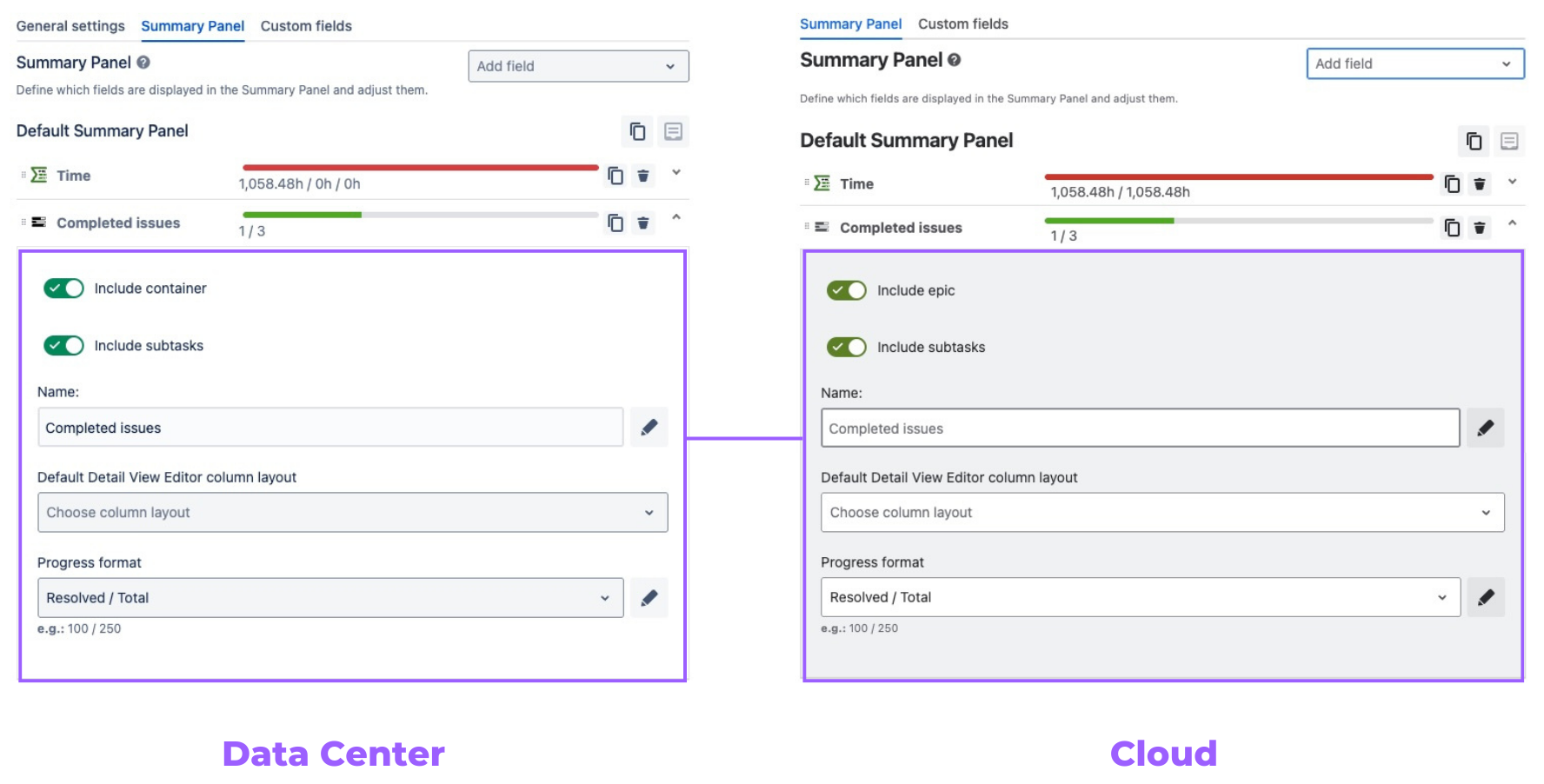
When you select a project for the migration, all the configurations made on the individual issues within that project will be migrated with it.
Summary Panel
Custom fields

Progress field settings to consider when migrating:
-
time, completed issues & status category can be migrated to Cloud
Progress field settings that cannot be migrated to Cloud:
-
story points
Project configuration
When you select a project for the migration, the project configuration of Epic Sum Up for that project will be migrated with it.
General settings
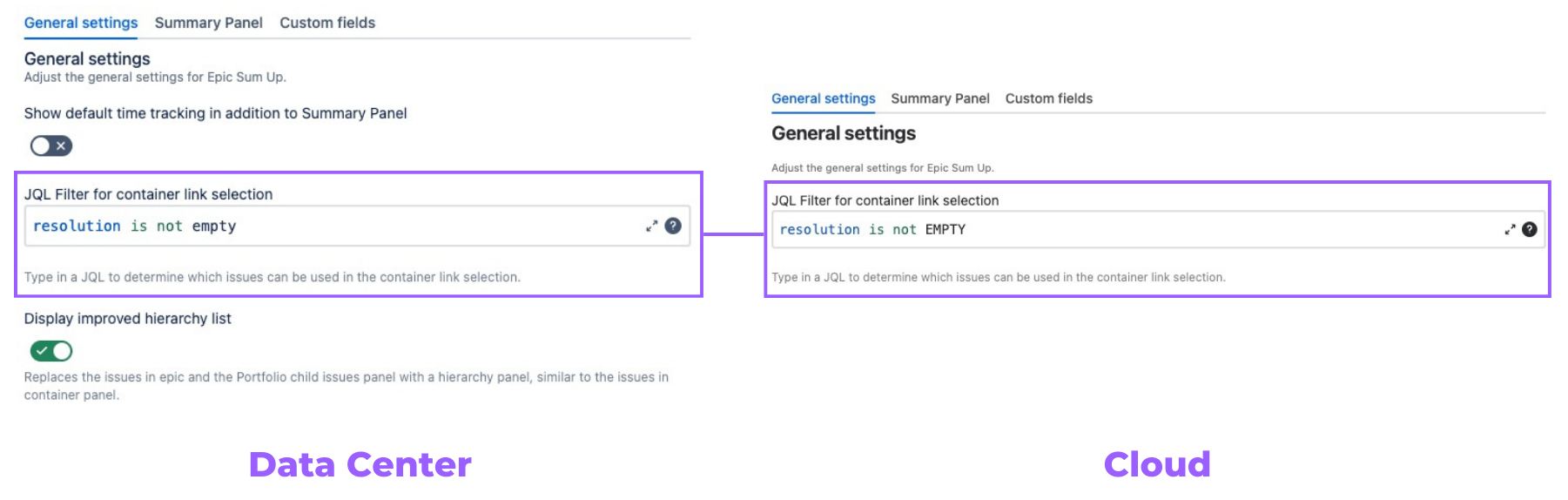
The JQL filter for container link selection will be migrated.
Both the toggles ‘Show default time tracking in addition to Summary Panel’ and ‘Display improved hierarchy list’ won’t be migrated.
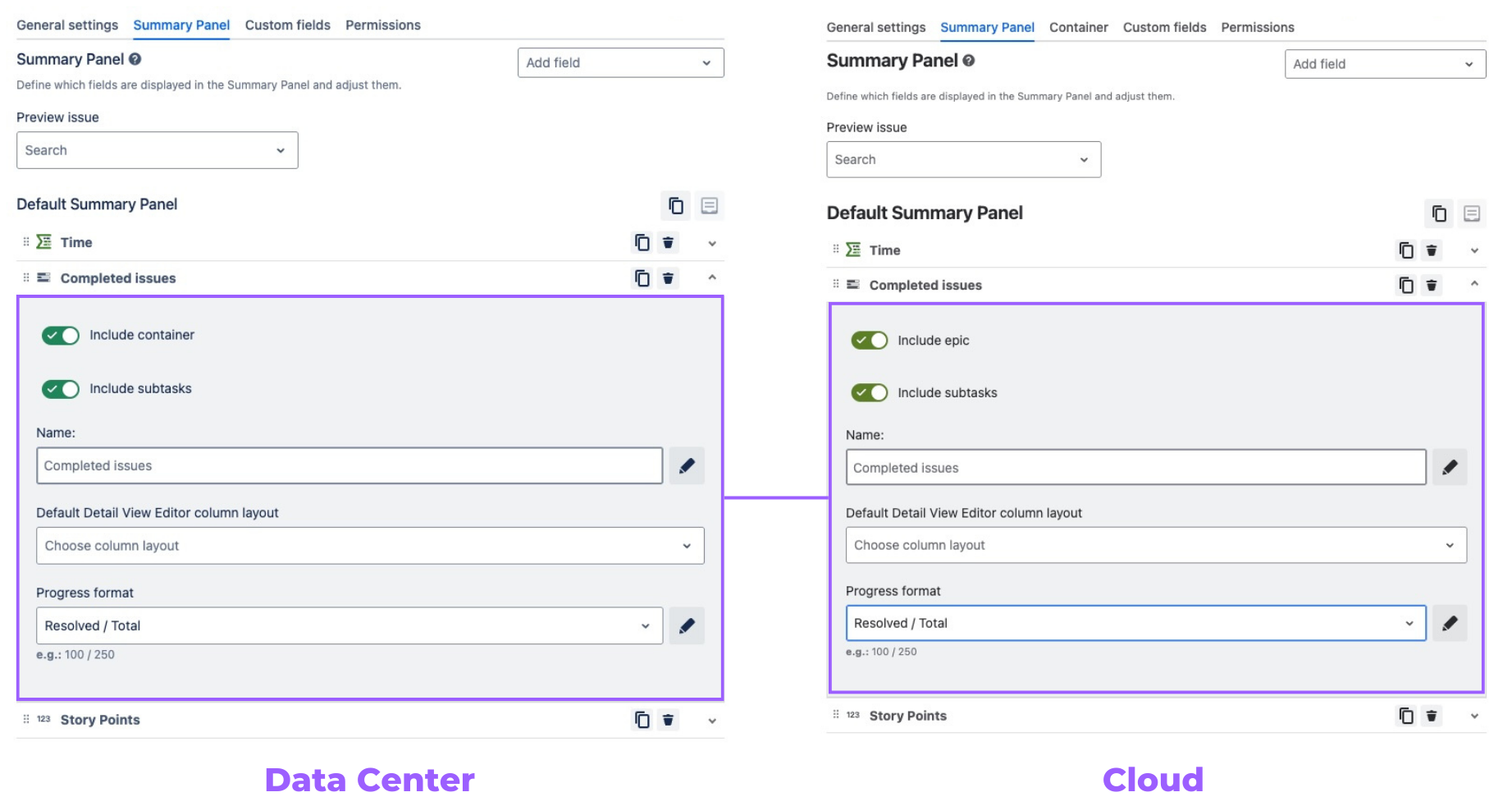
Summary Panel
Custom fields

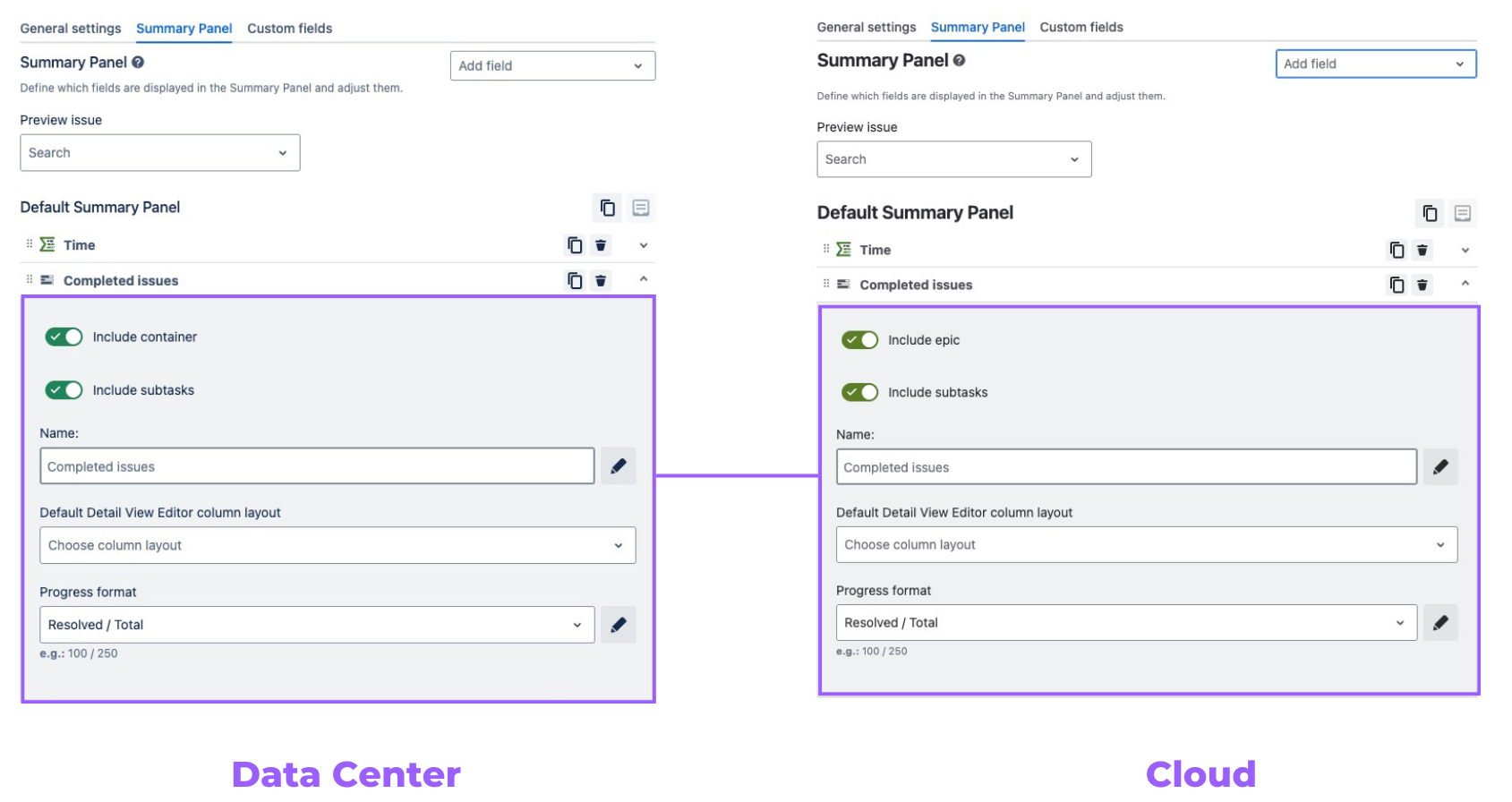
Progress field settings to consider when migrating:
-
time, completed issues & status category can be migrated to Cloud
Progress field settings that cannot be migrated to Cloud:
-
story points
Global configuration
Because the migration process is project based, the global configuration will be migrated but not automatically applied. To avoid overriding your current global configuration, you will be asked if you want to apply the newly migrated configuration, the next time you open the global configuration.
General settings
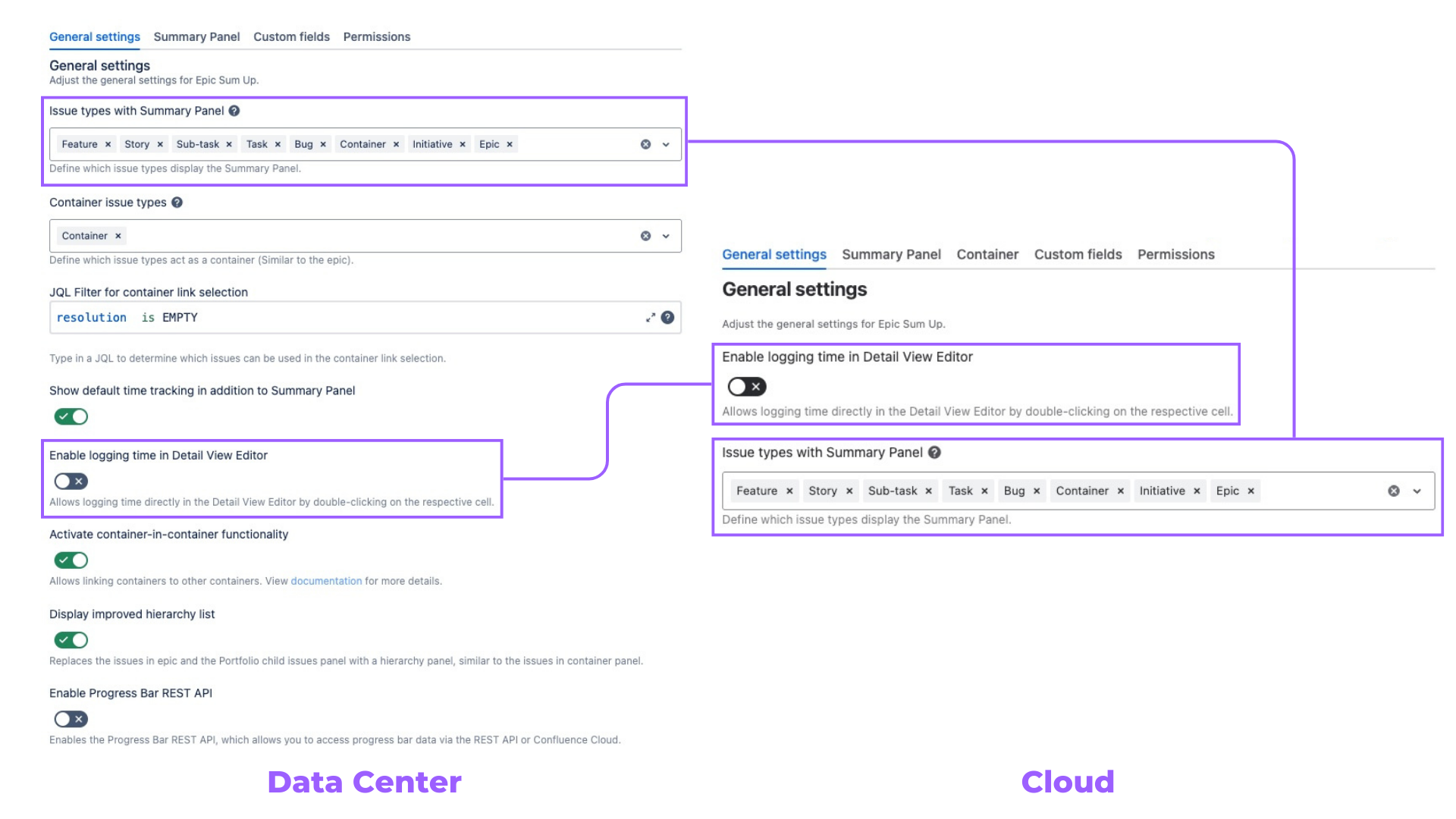
Containers
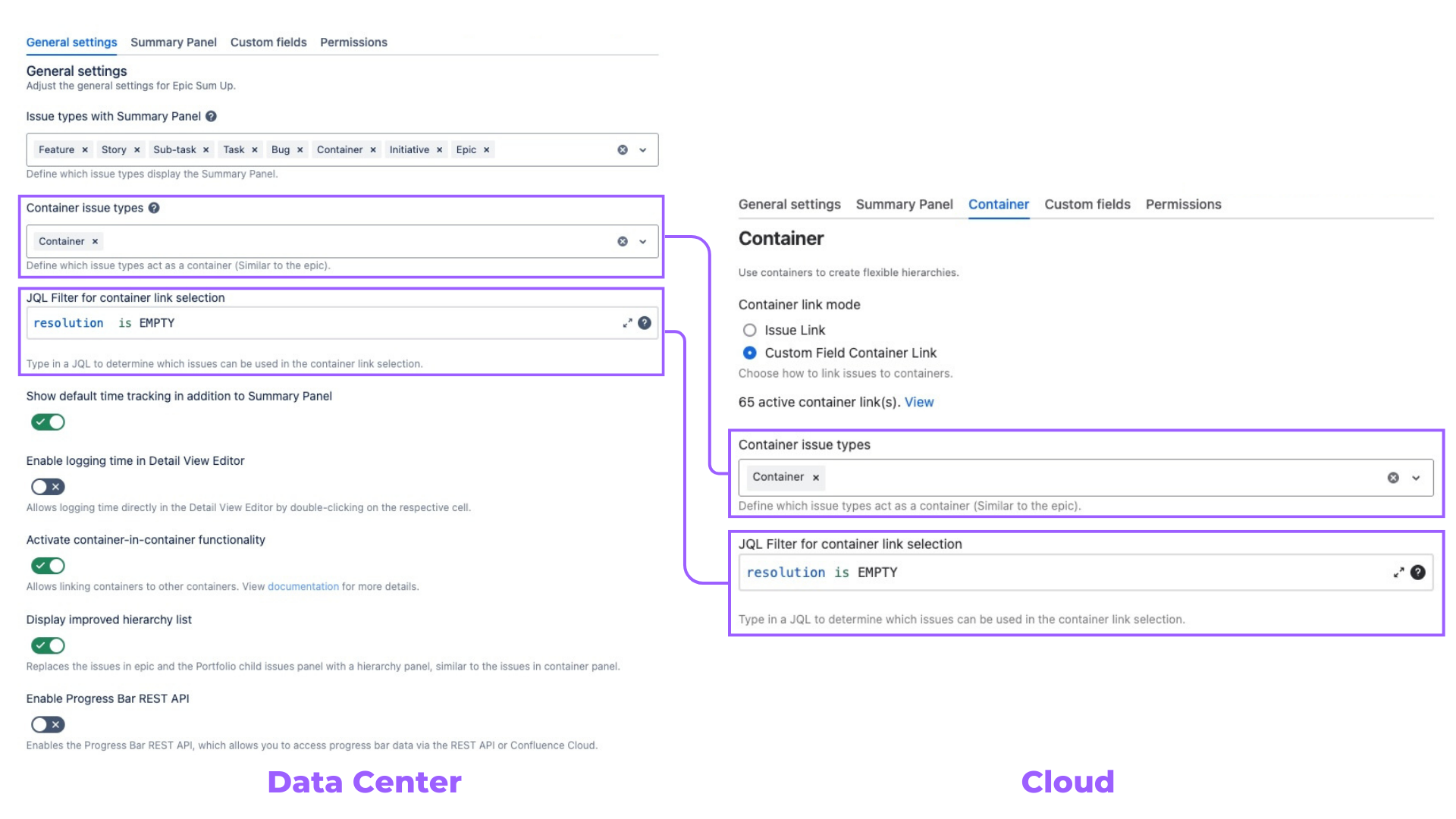
Summary Panel
Custom fields
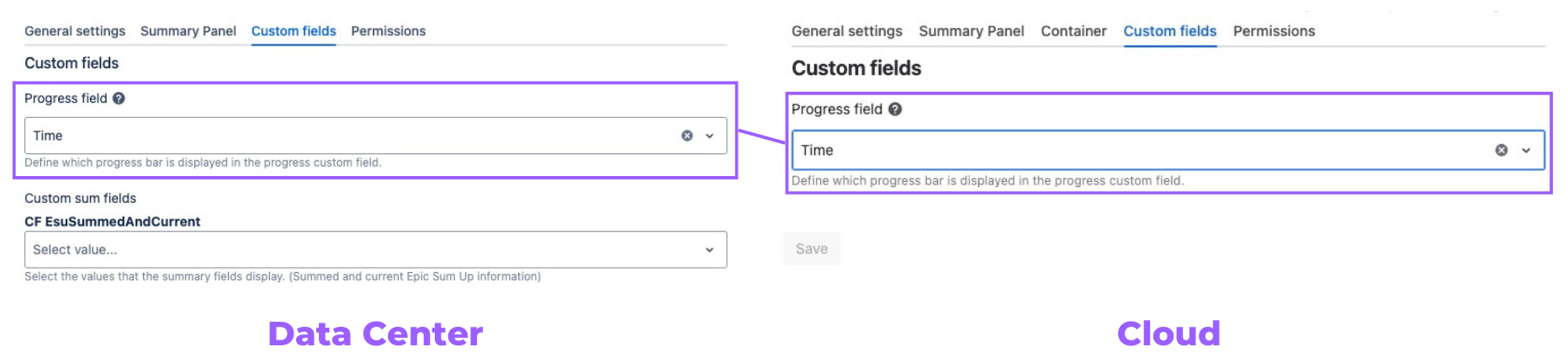
Progress field settings to consider when migrating:
-
time, completed issues & status category can be migrated to Cloud
Progress field settings that can't be migrated to Cloud:
-
story points
Permissions
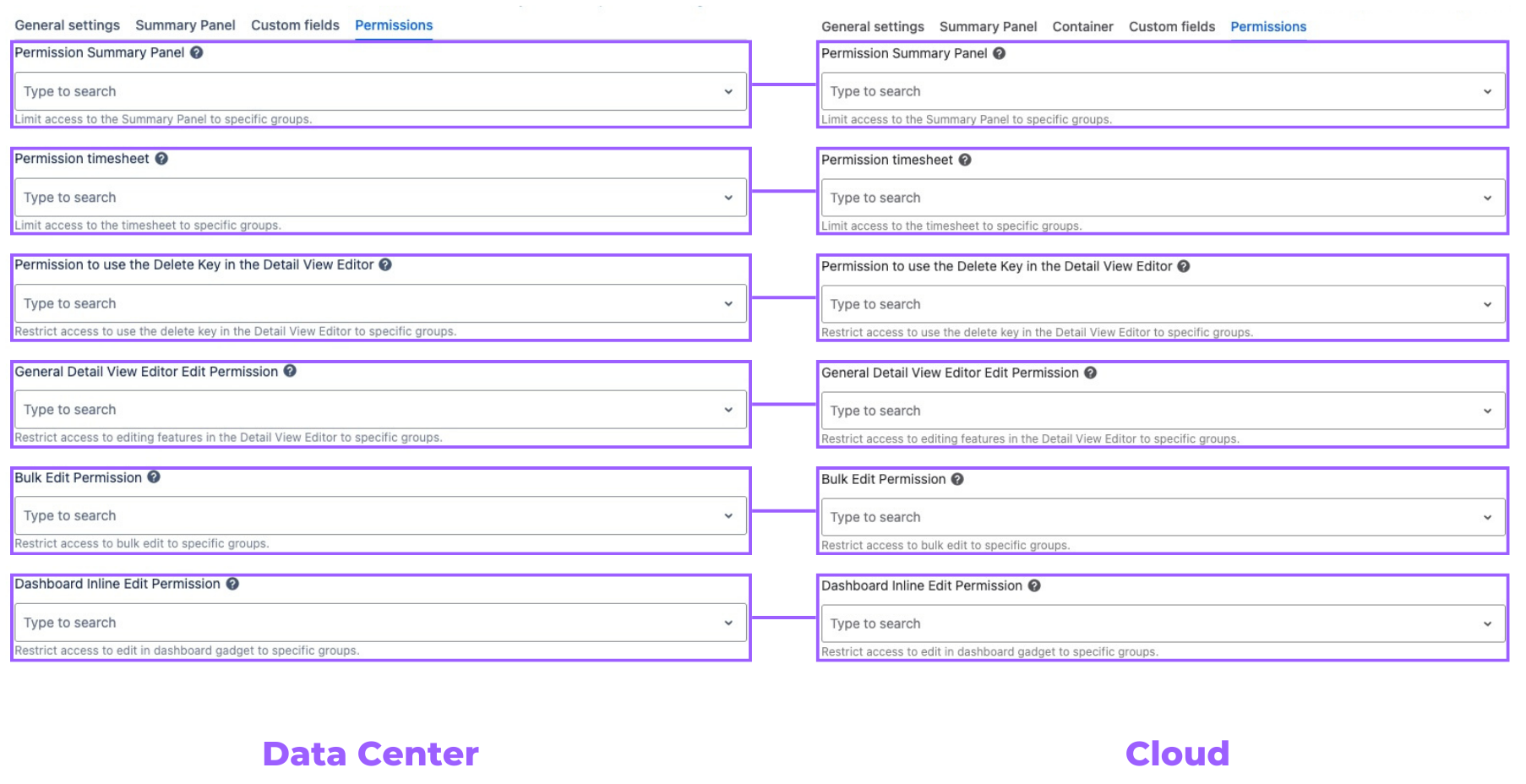
Containers
If you migrate your entire instance simultaneously, no extra steps are required. Containers will be included in the automatic migration process.
In case you’re doing a project by project migration, container links between already migrated projects and not yet migrated projects will break temporarily.
Once all projects are migrated, the links can be reinstated.
Please contact our support team for further instructions.
Dashboard gadgets
At the moment, dashboard gadgets won’t be migrated automatically. They have to be re-configured manually after the migration has been completed.
FAQ
Data residency
ESU is a Runs on Atlassian app. This means that it will automatically have the same data residency region as your Jira.
Learn more about Runs on Atlassian here:
https://www.atlassian.com/blog/developer/runs-on-atlassian-now-available
Licensing
When moving from Server / Data Center to Cloud (or vice versa) you will need new licenses, as the respectable licenses are treated differently within the Atlassian Marketplace.
You can learn more about Atlassian's licensing here:
https://www.atlassian.com/licensing/marketplace#general-faqs
If you still have any questions you can reach out to our support. We’re happy to help.